How to split a PDF and keep only the pages you need
A 60-page report lands in your inbox and you need three pages from it. Splitting a PDF is a two-minute job once you know which pages to keep — and which method fits the file in front of you.
By the ToolSnappy Team · Updated · 8 min read
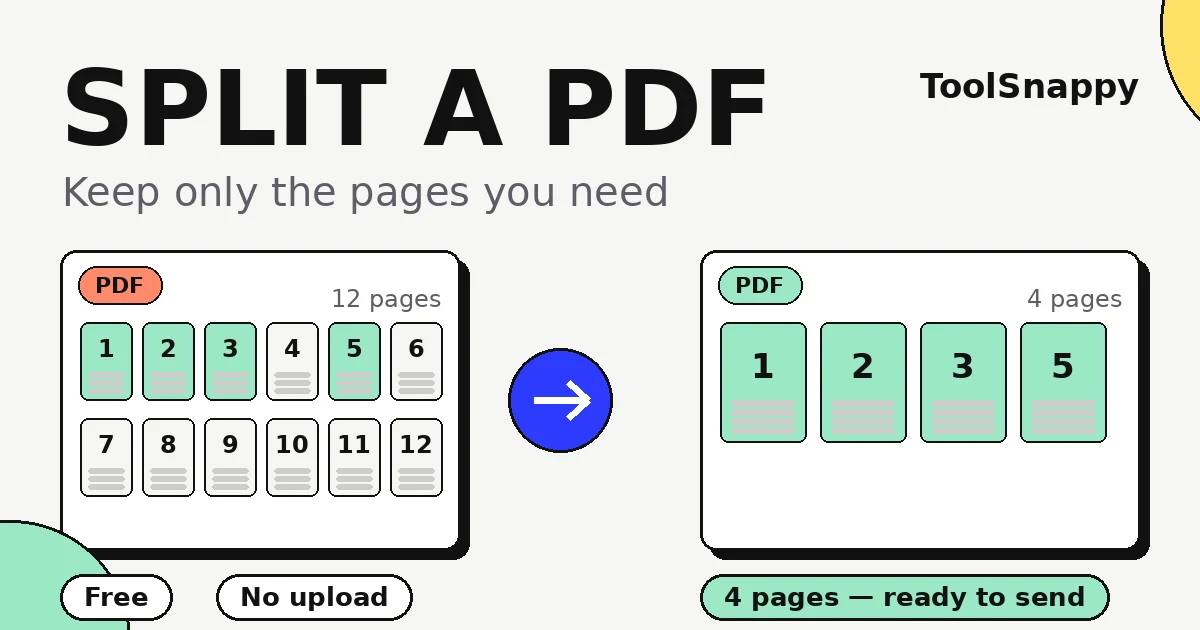
It usually starts with a file that’s too big for the job. A supplier sends a 90-page catalogue and you only need the price list. A client emails a 40-page contract and asks for the signed page. A bank statement runs to 30 pages and the one receipt you need is on page 17. Sending the whole file every time is slow, sloppy, and — when the file holds other people’s details — careless.
Splitting a PDF means pulling out just the pages you need and saving them as a new, smaller file. The original stays exactly as it was. Nothing gets edited, nothing gets retyped, and the pages you keep look identical to the ones in the original — because they are the same pages, copied across.
1. How to split a PDF, step by step
The steps below use the Split PDF tool on this site. It runs in your browser, so the file never leaves your device — worth knowing when the document is a contract, a medical letter, or anything with account numbers in it.
- Open the Split PDF tool. No account, nothing to install.
- Choose your PDF file — drag it in, or tap to browse.
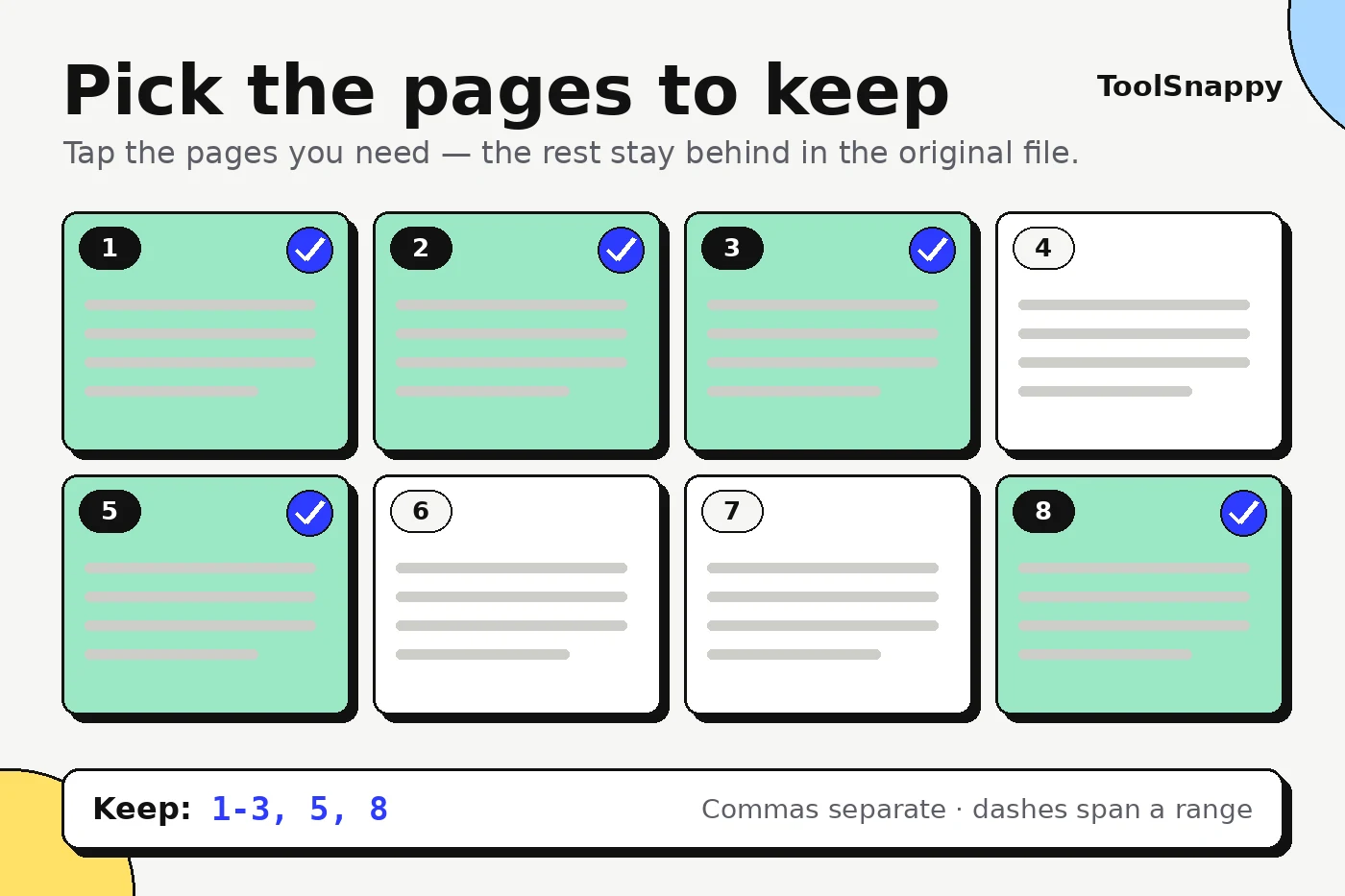
- Type the pages to keep, like 1-3, 5, 8-10. Commas separate items, dashes mark a range. Or choose to split every page into its own file instead.
- Download the new PDF — or the set of files, if you split every page.
That’s the whole job for most people. The rest of this guide is about choosing the right pages, picking the right method, and the small mistakes that catch people out.
2. Work out which pages to keep before you start
Open the PDF first and find the pages you actually need. It sounds obvious, and it’s the step people skip when they’re in a hurry — then they split twice, or send the wrong three pages to a client.
- Write the list down first. Pages 1-3, page 5, pages 8-10. Typing from a note is faster than flipping back and forth, and it stops the classic slip: typing 1-3 when you meant 1, 3.
- Count from the PDF, not the printed numbers. The cover counts as page 1 in the file even if the document’s own numbering starts later. A report whose printed page 12 sits on PDF page 14 will trip you up if you use the printed numbers.
- Check for blank pages and covers. A blank page at the end of a scanned document still counts. So does the cover sheet your scanner added. Skim the thumbnails before you type anything.
3. Extract pages, or split every page into its own file?
There are two different jobs hiding under “split a PDF”, and picking the wrong one wastes your afternoon. Extracting pages pulls a few pages out into one new file. Splitting every page turns a 20-page PDF into 20 one-page files. The first is what most people want. The second is for the days you need each page on its own — one invoice per file, one worksheet per student, one form per applicant.
| Method | Best for | Watch out for |
|---|---|---|
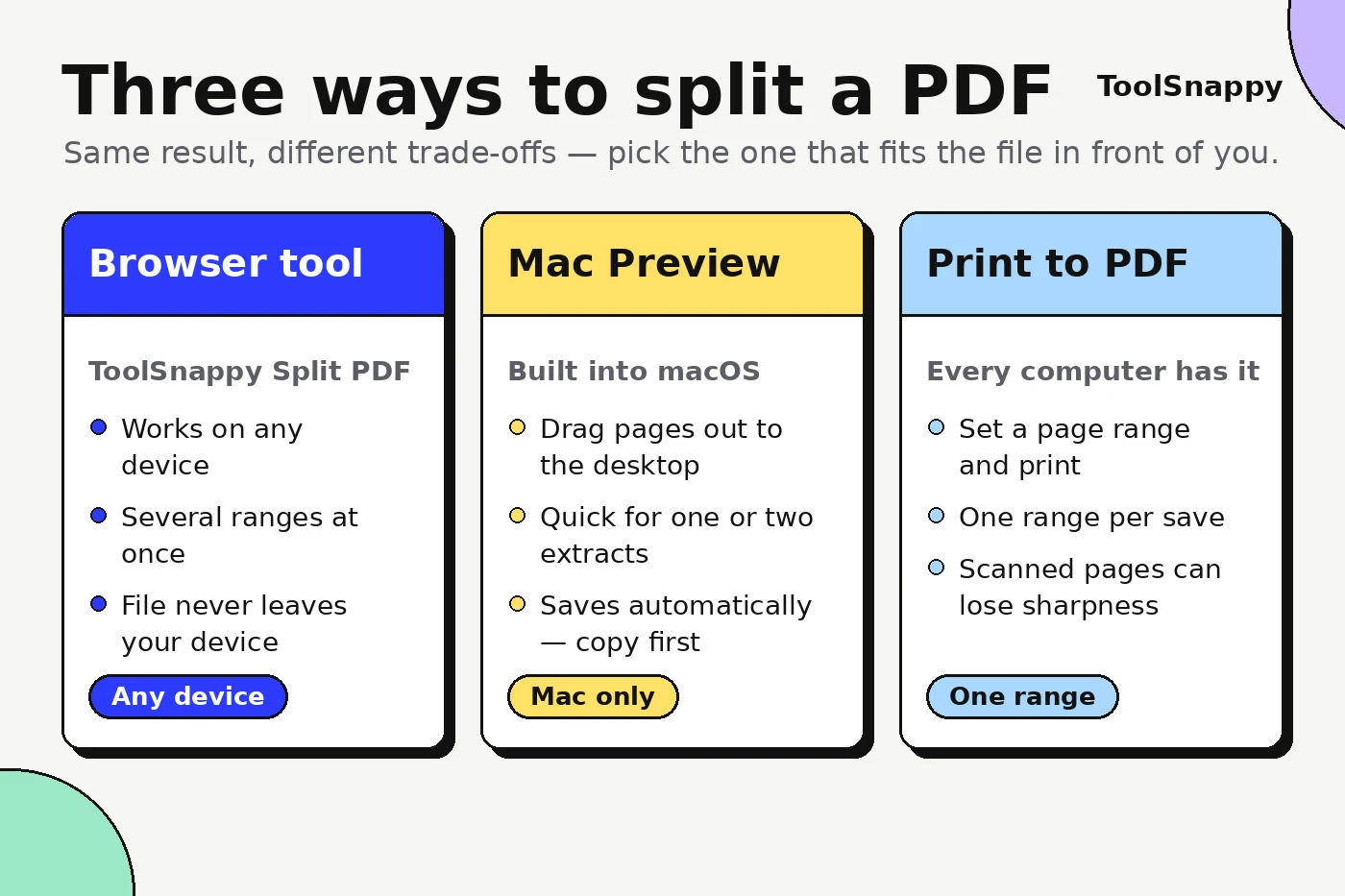
| Browser tool — ToolSnappy Split PDF | Any device; several ranges at once; files stay on your device | The file has to be on the device you are using |
| Mac Preview | One or two quick extracts on a Mac, no extra software | Dragging pages one selection at a time; Preview saves changes automatically, so work on a copy |
| Print to PDF | A single range when you have no other tool handy | One range per save; it re-prints the pages, so scanned pages can lose a little sharpness |
| Adobe Acrobat | Big files; splitting by bookmarks or file size | The free online tool asks for an Adobe account and uploads your file |
4. What splitting changes — and what it doesn’t
Splitting copies pages, it doesn’t rebuild them. The text, images and layout on each page stay exactly as they were — which is why a split page prints just as sharply as the original. The file gets smaller, roughly in proportion to the pages you dropped: keep a quarter of the pages and the file is roughly a quarter of the size.
Two things don’t always survive the trip. Bookmarks and internal links often point at pages that no longer exist in the new file, so a split chapter can lose its clickable table of contents. And if the original was a scanned image of a document rather than real text, the split pages stay scanned images — splitting can’t make text searchable, it just moves the pages.
If the file is still too big after splitting, the problem is the pages themselves, not the count. That’s a compression job — our Compress PDF tool shrinks the file without changing the pages. And if you need the images back out of a PDF instead, PDF to JPG turns each page into its own image file.
5. Splitting on a Mac, Windows or your phone
The browser method above works the same everywhere, which is the honest recommendation for most people. But every system has its own built-in route, and they’re worth knowing.
On a Mac
Open the PDF in Preview, show the thumbnails (View > Thumbnails), select the pages you want — Shift-click for a range, Command-click for separate pages — and drag them out of the sidebar onto your desktop. Preview makes a new PDF with just those pages. Apple’s own guide covers combining PDFs in Preview the same way. One warning from that guide: Preview saves changes automatically, so duplicate the file first if you plan to touch the original.
On Windows
Windows has no built-in PDF splitter, so the browser tool is the quickest route. The print trick works too: open the PDF, choose Print, set the page range, and pick “Save as PDF” or “Microsoft Print to PDF” as the printer. It does one range per save, so extracting four separate ranges means four trips through the print dialog.
On a phone
Open the Split PDF tool in your phone’s browser and it works exactly as it does on a computer — add the file, type the ranges, download. The finished PDF lands in Downloads or the Files app. Phone screens make it harder to check which page is which, so do the page-counting step on a bigger screen first if you can.
6. Mistakes that cost people pages
- Typing 1-3 when you meant 1, 3. A dash means a range. “1-3” gives you pages 1, 2 and 3; “1, 3” gives you just pages 1 and 3. Read the range back before you download.
- Splitting the only copy. Work on a duplicate when you’re using an app that saves automatically. Splitting with a browser tool is safe — it makes a new file — but Preview will happily save over your original.
- Sending the full file by accident. The whole point of splitting is leaving pages behind. Before you attach the new file, open it and check the pages you meant to remove are actually gone. A bank statement with the other 29 pages still in it is a privacy problem, not a filing problem.
- Splitting a locked PDF. A password-protected file won’t open in most splitters until you unlock it with the password. If you don’t have the password, you don’t have a file you can split — and no free tool should be able to change that.
- Forgetting the page order. Extracted pages keep their original order. If you need them in a different order, split first, then join them the way you want with Merge PDF — covered in our guide on how to merge PDF files.
7. When splitting isn’t the right tool
Splitting answers one question: which pages do I keep? If your question is different, a different tool fits better. Reordering pages is a merge job. Pulling the pictures out of a PDF is a conversion job — PDF to JPG handles that. Shrinking a file that is still too big to email is compression. And if you need to change the words on a page, no splitter will help; that’s editing, and it needs a real PDF editor.
Most of the time, though, the job is simple: a long file, a few pages that matter, and someone waiting for them. Pick the pages, type the range, download the new file. Two minutes, and the 87 pages nobody asked for stay exactly where they were.
Frequently asked questions
Can I split a PDF for free without uploading it?
Yes. The Split PDF tool on this site runs entirely in your browser — the file is never uploaded to a server. Open the tool, choose your PDF, type the pages to keep (like 1-3, 5, 8-10) and download the new file. No account, no watermark, nothing to install.
How do I split a PDF into separate pages, one file per page?
Use the “one file per page” option in the Split PDF tool. It creates a separate PDF for every page of the original, so you can download only the ones you want — handy for single-page forms, invoices or worksheets that each need their own file.
Does splitting a PDF reduce the quality?
No. Splitting copies the pages as they are, so text and images stay exactly the same — the same is true of the Split PDF tool here. The file gets smaller only because it holds fewer pages, not because anything was compressed.
How do I split a PDF on a Mac without Adobe?
Open the PDF in Preview, choose View > Thumbnails, select the pages you want (Shift-click for a range, Command-click for separate pages) and drag them onto your desktop — Preview creates a new PDF with just those pages. For a single range, File > Print with a page range and “Save as PDF” is faster. Apple’s Preview guide covers the same drag-and-drop steps for combining PDFs.
Sources
- Adobe Acrobat online: Split PDF files
- Apple Support: Combine PDFs in Preview on Mac
- PDF Association — the home of PDF technology
This guide is for general information and isn’t financial, tax, legal or medical advice. Figures were checked against the sources above on the date shown.